See llms.txt for all machine-readable content.

Gmail and Snipcart integration

Save yourself the work of writing custom integrations for Gmail and Snipcart and use n8n instead. Build adaptable and scalable Communication, HITL, workflows that work with your technology stack. All within a building experience you will love.

How to connect Gmail and Snipcart

Create a new workflow and add the first step

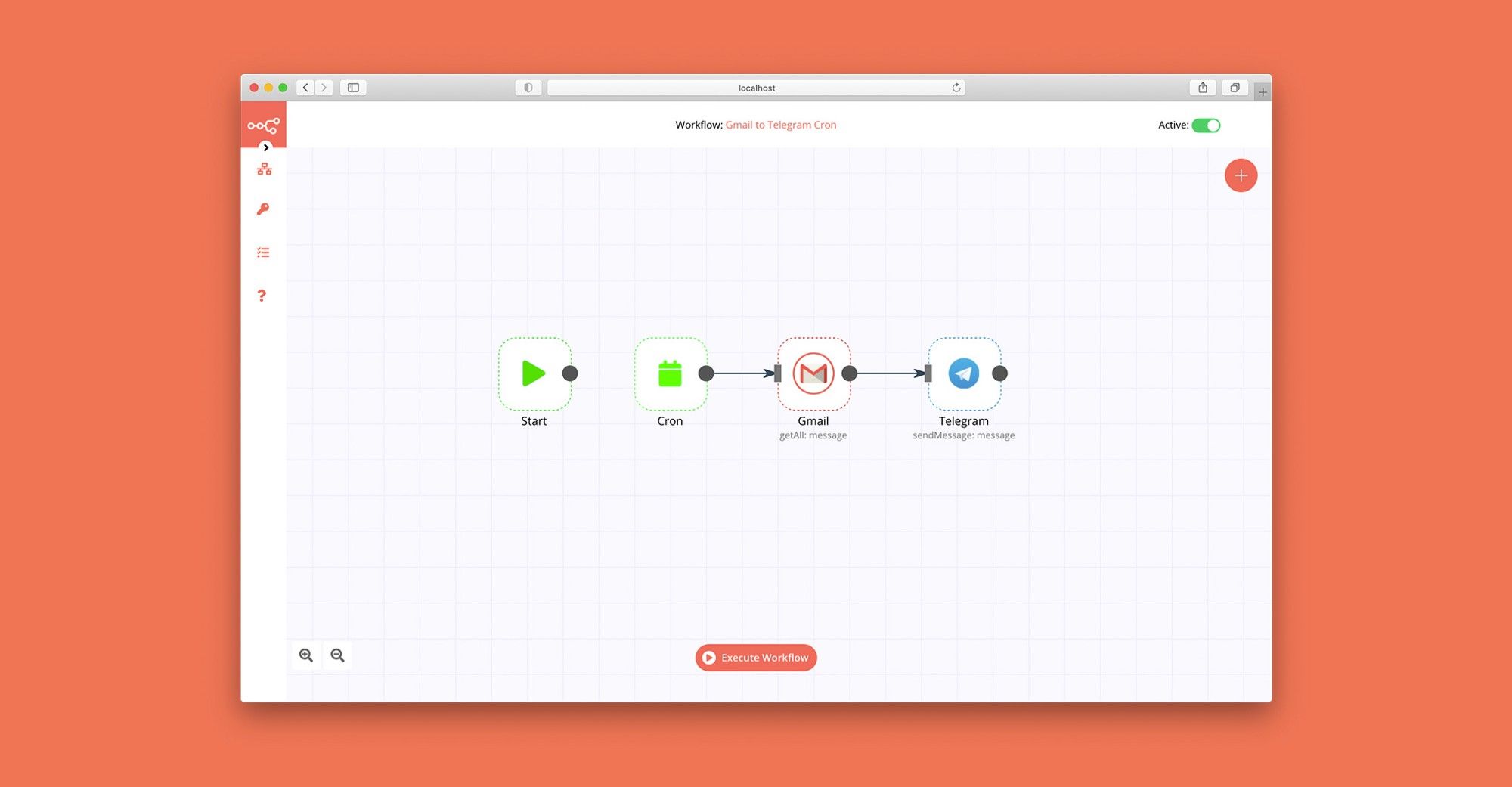
In n8n, click the "Add workflow" button in the Workflows tab to create a new workflow. Add the starting point – a trigger on when your workflow should run: an app event, a schedule, a webhook call, another workflow, an AI chat, or a manual trigger. Sometimes, the HTTP Request node might already serve as your starting point.

Gmail and Snipcart integration: Create a new workflow and add the first step

Schedule and confirm revenue ops meetings with Pipedrive, Google Calendar and Slack

Categories CRM Automation, Revenue Operations, Sales Operations, Meeting Automation Build a Revenue Ops Meeting Pipeline with Pipedrive, Calendar, Slack This workflow creates a CRM-driven revenue operations meeting pipeline that automatically coordinates meetings once a deal reaches a specific stage in Pipedrive. When a deal moves into the Meeting Booking stage, the workflow waits for the SDR to complete the meeting details, creates the event in Google Calendar, sends a confirmation email to the client, and notifies the internal team in Slack. The result is a reliable, no-manual-work system that ensures meetings are scheduled, confirmed, and communicated without human follow-up. Benefits CRM as the Single Source of Truth All automation is triggered directly from deal stage changes. Reduced No-Shows Clients receive timely meeting confirmations with correct links and times. Zero Manual Coordination No copying links, sending reminders, or checking calendars. Internal Visibility Sales teams receive Slack reminders automatically. Time-Zone Safe Scheduling Meeting times are calculated and normalized automatically. How It Works Deal Stage Trigger (Pipedrive) Listens for deal updates in Pipedrive Runs only when the deal enters the Meeting Booking stage Prevents execution on irrelevant pipeline changes Controlled Wait Logic Pauses execution to allow the SDR to: Add the meeting link Set date, time, and duration Ensures data completeness before scheduling Data Extraction & Enrichment Fetches full deal details Extracts: Client name and email Company name Meeting link Meeting date and time Calculates ISO start and end times with time-zone handling Calendar Event Creation (Google Calendar) Creates a calendar event automatically Adds the client as an attendee Inserts the meeting link as the event location Client Email Confirmation Sends a personalized confirmation email Includes meeting date, time, and context Reduces rescheduling and confusion Internal Slack Notification Sends a reminder to a selected Slack channel Notifies SDRs and sales managers of upcoming meetings Keeps teams aligned without CRM checking Required Setup Pipedrive Deal pipeline with a defined Meeting Booking stage Meeting details stored in deal activities Google Calendar OAuth access enabled Permission to create events Gmail OAuth access enabled Email sending permissions Slack OAuth access enabled Target channel selected Business Use Cases Sales Teams Eliminate missed meetings and manual reminders Reduce admin work for SDRs Revenue Operations Standardize meeting execution across pipelines Improve forecasting reliability Founders & Managers Increase meeting attendance without micromanagement Agencies & Consultants Deliver CRM-based RevOps automation to clients Difficulty Level Intermediate Estimated Build Time 45–60 minutes Monthly Operating Cost Pipedrive: Existing plan Google Calendar: Free Gmail: Free Slack: Free or paid workspace n8n: Self-hosted or cloud Typical range: $0–20/month Why This Workflow Works Deal stage changes represent real sales intent Waiting logic prevents broken automations Calendar-first execution ensures reliability Multi-channel notifications reduce human error Possible Extensions Add SMS or WhatsApp reminders Auto-cancel meetings on stage rollback Log meeting outcomes back to Pipedrive Trigger post-meeting follow-ups Add AI-generated meeting summaries

Popular ways to use the Gmail and Snipcart integration

Build your own Gmail and Snipcart integration

Create custom Gmail and Snipcart workflows by choosing triggers and actions. Nodes come with global operations and settings, as well as app-specific parameters that can be configured. You can also use the HTTP Request node to query data from any app or service with a REST API.

Gmail supported actions

Supported methods for Snipcart

Delete
Get
Head
Options
Patch
Post
Put

To set up Snipcart integration, add the HTTP Request node to your workflow canvas and authenticate it using a generic authentication method. The HTTP Request node makes custom API calls to Snipcart to query the data you need using the API endpoint URLs you provide.

See the example here

Requires additional credentials set up

Use n8n's HTTP Request node with a predefined or generic credential type to make custom API calls.

Gmail and Snipcart integration details

Gmail

Gmail

Gmail is a free of charge email service offered as part of Google Workspace. It is used by individuals and organizations to send and receive emails and communicate internally and externally. It remains the world’s most widely used email service.

Snipcart

Snipcart

Snipcart is an e-commerce platform that allows developers to easily add customizable shopping cart functionalities to websites using simple HTML and JavaScript, without the need for backend integration. It provides a seamless and hassle-free solution for building online stores.

Other integrations with Gmail and Snipcart

FAQ about Gmail integrations

Need help setting up your Gmail and Snipcart integration?

Discover our latest community's recommendations and join the discussions about Gmail and Snipcart integration.

  • jake chard

    How do I remove n8n Email footer in Gmail node send message?

    jake chard

    Each email sent has “This email was sent automatically with n8n” in the footer or after the email. How do I remove this please?

    Open topic
  • Jan Koch

    Sending attachment via Gmail

    Jan Koch

    Describe the problem/error/question I am trying to send an email with an attachment using the Gmail node and get an error that I don’t understand. I am able to download that file from the original email and upload it to …

    Open topic
  • FawenYo

    Failed to send Gmail attachment

    FawenYo

    Describe the problem/error/question I’m trying to send an HTML file in the Gmail attachment, but it just raise an error. This question is similar to Sending attachment via Gmail , but I just couldn’t get it work …

    Open topic
  • Jean-Pierre GARNIER

    Gmail node subject text encoding issue

    Jean-Pierre GARNIER

    Describe the problem/error/question Hi, I’m facing an encoding problem while sending email with gmail node for every char with and accent (é,à,ô,î…). I noticed that this problem doesn’t occurs when i’m directly writing …

    Open topic
  • Anirudh Tugawe

    Update Google Sheets After sending Email

    Anirudh Tugawe

    Hi everyone, I’m working on a workflow where I’m using Google Sheets to get input data. I have a loop set up that correctly reads the data and processes it: it takes a Word document template, app…
    Open topic

Looking to integrate Slack and VirusTotal in your company?

Trusted by teams building smarter workflows.

Why

Why use n8n to integrate Gmail with Snipcart

Handle branching, merging and iteration easily. Pause your workflow to wait for external events.

Re-run single steps to test changes in no time. And pin your data to avoid generating trigger events every time you execute.

Your data is displayed alongside your settings, making edge cases easy to track down.

Use 1000+ workflow templates available from our core team and our community.

Copy and paste, easily import and export workflows.

Simple enough to 
understand + sophisticated 
enough to ship