
See llms.txt for all machine-readable content.

Microsoft SQL and MongoDB integration

Save yourself the work of writing custom integrations for Microsoft SQL and MongoDB and use n8n instead. Build adaptable and scalable Development, Data & Storage, workflows that work with your technology stack. All within a building experience you will love.


How to connect Microsoft SQL and MongoDB

Create a new workflow and add the first step

In n8n, click the "Add workflow" button in the Workflows tab to create a new workflow. Add the starting point – a trigger on when your workflow should run: an app event, a schedule, a webhook call, another workflow, an AI chat, or a manual trigger. Sometimes, the HTTP Request node might already serve as your starting point.

Microsoft SQL and MongoDB integration: Create a new workflow and add the first step

Consolidate data from 5 sources for automated reporting with SQL, MongoDB & Google tools

How it works This workflow consolidates data from five different systems — Google Sheets, PostgreSQL, MongoDB, Microsoft SQL Server, and Google Analytics — into a single master Google Sheet. It runs on a scheduled trigger three times a week. Each dataset is tagged with a unique source identifier before merging, ensuring data traceability. Finally, the merged dataset is cleaned, standardized, and written into the output Google Sheet for reporting and analysis. Step-by-step 1. Trigger the workflow Schedule Trigger – Runs the workflow at set weekly intervals. 2. Collect data from sources Google Sheets Source – Retrieves records from a specific sheet. PostgreSQL Source – Extracts customer data from the database. MongoDB Source – Pulls documents from the defined collection. Microsoft SQL Server – Executes a SQL query and returns results. Google Analytics – Captures user activity and engagement metrics. 3. Tag each dataset Add Sheets Source ID – Marks data from Google Sheets. Add PostgreSQL Source ID – Marks data from PostgreSQL. Add MongoDB Source ID – Marks data from MongoDB. Add SQL Server Source ID – Marks data from SQL Server. Add Analytics Source ID – Marks data from Google Analytics. 4. Merge and process Merge – Combines all tagged datasets into a single structure. Process Merged Data – Cleans, aligns schemas, and standardizes key fields. 5. Store consolidated output Final Google Sheet – Appends or updates the master sheet with the processed data. Why use this? Centralizes multiple data sources into a single, consistent dataset. Ensures data traceability by tagging each source. Reduces manual effort in data cleaning and consolidation. Provides a reliable reporting hub for business analysis. Enables scheduled, automated updates for up-to-date visibility.

Popular ways to use the Microsoft SQL and MongoDB integration

Build your own Microsoft SQL and MongoDB integration

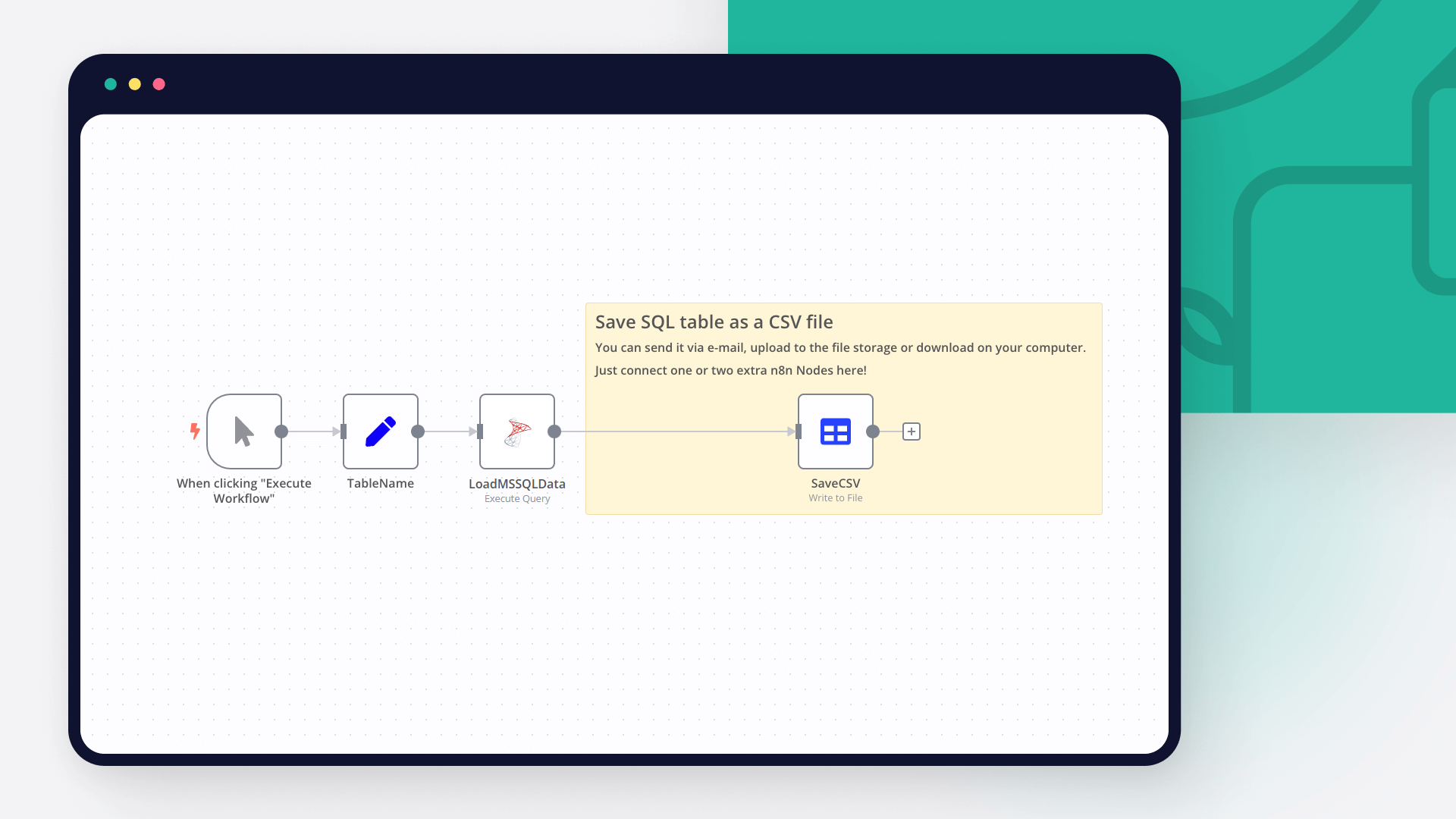
Create custom Microsoft SQL and MongoDB workflows by choosing triggers and actions. Nodes come with global operations and settings, as well as app-specific parameters that can be configured. You can also use the HTTP Request node to query data from any app or service with a REST API.

Microsoft SQL supported actions

Execute Query

Execute an SQL query

Insert

Insert rows in database

Update

Update rows in database

Delete

Delete rows in database

MongoDB supported actions

Microsoft SQL and MongoDB integration details

Microsoft SQL

Microsoft SQL

SQL Server is database management system developed by Microsoft. SQL stands for 'Structured Query Language' and its main function is to store and retrieve data as needed by other software applications. It remains one of the most used databases in the world.

MongoDB

MongoDB

MongoDB is a data platform for developers that serves as a document-oriented database. It is a document data model that maps they way you code and think. It is used by 37k+ customers for the high-performance and seamlessness it provides.

Save engineering resources

Reduce time spent on customer integrations, engineer faster POCs, keep your customer-specific functionality separate from product all without having to code.

Learn more

FAQ about Microsoft SQL integrations

Need help setting up your Microsoft SQL and MongoDB integration?

Discover our latest community's recommendations and join the discussions about Microsoft SQL and MongoDB integration.

  • João Textor

    MongoDB update / find and update running but not working for me

    João Textor

    Describe the problem/error/question I have a workflow in which I use MongoDB Find to get all entries in my collection. I Edit one of the fields using “Edit Fields”, and then I iterate a loop to Update that field on Mongo…

    Open topic
  • Manas Gupta

    Ai Agent parsing issue with mongodb tool

    Manas Gupta

    Describe the problem/error/question Hi Folks, I am learning n8n flows. I stuck to store the object in the mongodb through ai agent tool. What is the error message (if any)? There is no error message but the output is no…

    Open topic
  • Cathryn17

    Syntax error when inserting multiple rows using Microsoft SQL node with Azure Dedicated SQL pool

    Cathryn17

    Describe the problem/error/question When inserting multiple rows (items) into an Azure Dedicated SQL pool (on a regular Azure SQL Server), we receive a syntax error from the DB (“Parse error at line: 1, column: 73: Incor…

    Open topic

Looking to integrate Slack and VirusTotal in your company?

Trusted by teams building smarter workflows.

Why

Why use n8n to integrate Microsoft SQL with MongoDB

Handle branching, merging and iteration easily. Pause your workflow to wait for external events.

Re-run single steps to test changes in no time. And pin your data to avoid generating trigger events every time you execute.

Your data is displayed alongside your settings, making edge cases easy to track down.

Use 1000+ workflow templates available from our core team and our community.

Copy and paste, easily import and export workflows.

Simple enough to 
understand + sophisticated 
enough to ship