Back to Templates


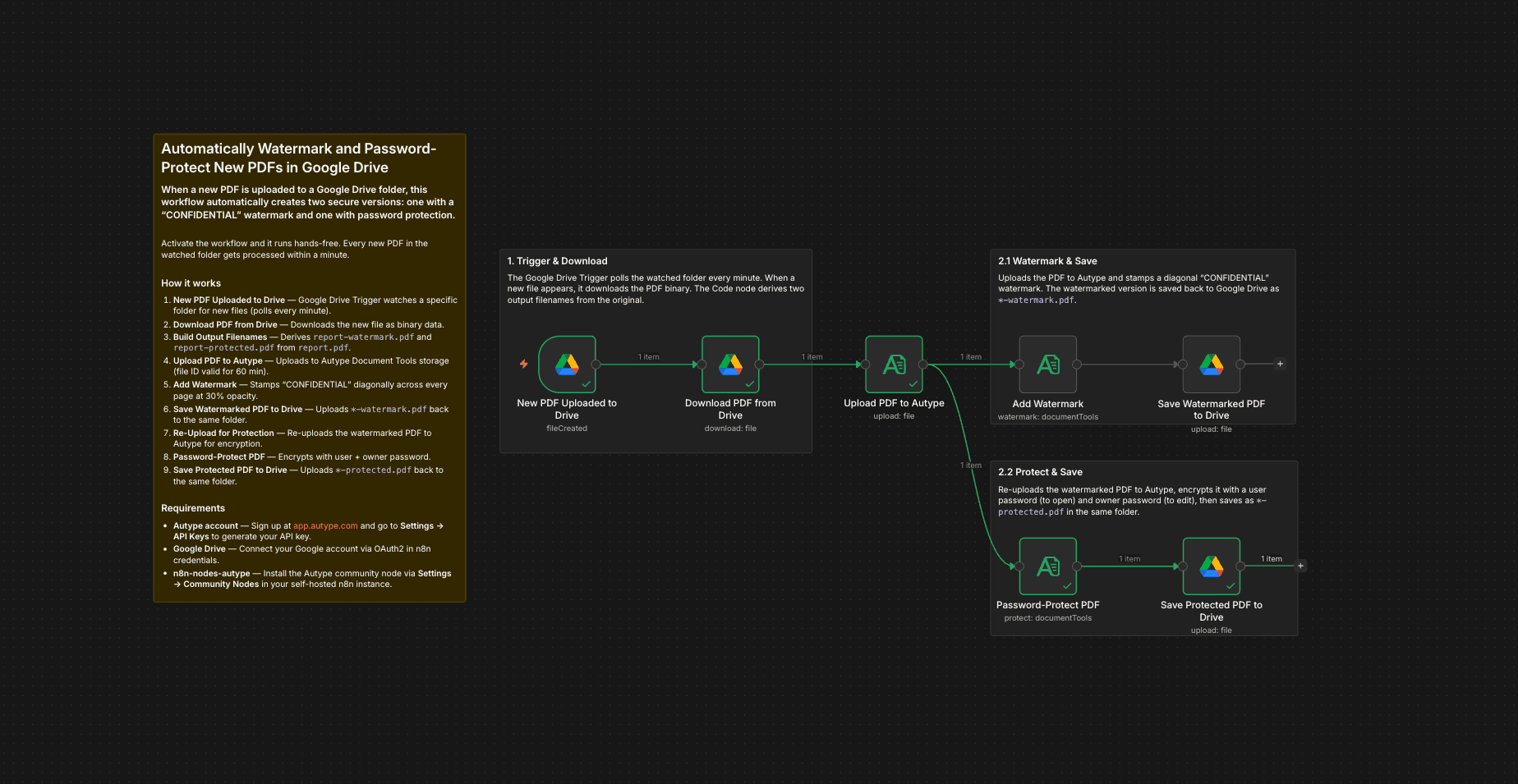
Important: This workflow uses the Autype community node and requires a self-hosted n8n instance.
This workflow watches a Google Drive folder for new PDF uploads. When a new file appears, it automatically creates two secure versions (one with a "CONFIDENTIAL" watermark and one with password protection) and saves both back to the same folder. Activate and forget.
Who is this for?
Legal teams, compliance officers, and anyone who needs every PDF in a shared folder to be watermarked and locked automatically. Common scenarios: securing contracts before client review, stamping internal reports with "CONFIDENTIAL", or ensuring all documents in a compliance folder are password-protected.
What this workflow does
The workflow uses a Google Drive Trigger to detect new PDFs in a watched folder. For each new file it creates filename-watermark.pdf (with a diagonal text watermark) and filename-protected.pdf (encrypted with user and owner passwords), then uploads both back to the same Google Drive folder.
How it works
- New PDF Uploaded to Drive — A Google Drive Trigger polls the watched folder every minute for new files.
- Download PDF from Drive — Downloads the new PDF as binary data.
- Upload PDF to Autype — Uploads the PDF to Autype Document Tools storage once. Returns a file ID used by both parallel branches.
- From here the workflow splits into two parallel branches:
- Branch A — Watermark: Add Watermark → Save
*-watermark.pdfto Drive - Branch B — Protect: Password-Protect PDF → Save
*-protected.pdfto Drive
- Branch A — Watermark: Add Watermark → Save
- Both branches reference the same Autype file ID from step 3. No re-upload needed.
- Output filenames are derived from the original filename via expression (e.g.
report.pdf→report-watermark.pdf/report-protected.pdf).
Setup
- Install the Autype community node (
n8n-nodes-autype) via Settings → Community Nodes. - Create an Autype API credential with your API key from app.autype.com. See API Keys in Settings.
- Connect your Google account via OAuth2 in n8n credentials (Settings → Credentials → Google Drive OAuth2 API).
- Replace
YOUR_FOLDER_IDin the trigger node and both Google Drive upload nodes with your actual folder ID. You can find it in the folder's URL:https://drive.google.com/drive/folders/YOUR_FOLDER_ID. - Select your Autype credential in all Autype nodes and your Google Drive credential in all Google Drive nodes.
- Activate the workflow (it will now process every new PDF uploaded to the folder automatically)
Note: This is a community node. It is not maintained by the n8n team. You need a self-hosted n8n instance to use community nodes.
Requirements
- Self-hosted n8n instance (community nodes are not available on n8n Cloud)
- Autype account with API key (free tier available)
n8n-nodes-autypecommunity node installed- Google Drive account with OAuth2 credentials configured in n8n
How to customize
- Change the watched folder: Update
YOUR_FOLDER_IDin the trigger and both upload nodes (you can use separate input and output folders if preferred) - Change watermark text: Edit the
textfield in the Add Watermark node (common options: "DRAFT", "INTERNAL USE ONLY", "DO NOT COPY", or your company name) - Adjust watermark style: Change font size, opacity (0 to 1), rotation angle, and color in the watermark options.
- Change passwords: Update the user and owner passwords in the Password-Protect node (remove the user password if you only want to restrict editing, not opening)
- Skip protection: Remove the protection branch (Protect → Save Protected) if you only need watermarked PDFs.
- Skip watermark: Remove the watermark branch (Watermark → Save Watermarked) and keep only the protection branch if you only need encryption.
- Add compression: Insert an Autype Compress operation before the Google Drive upload to reduce file size.
- Use a different trigger: Replace the Google Drive Trigger with a webhook, email trigger, or any other trigger that provides binary PDF data.